

Comments Counter
You can add supportive features to the Commenting section with features provided in the Code Integration section, such as counting the number of comments, displaying the most popular commenter on the top of the list, and so on.
| Item | Description |
|---|---|
| Comments counter | You can view the number of comments on an article |
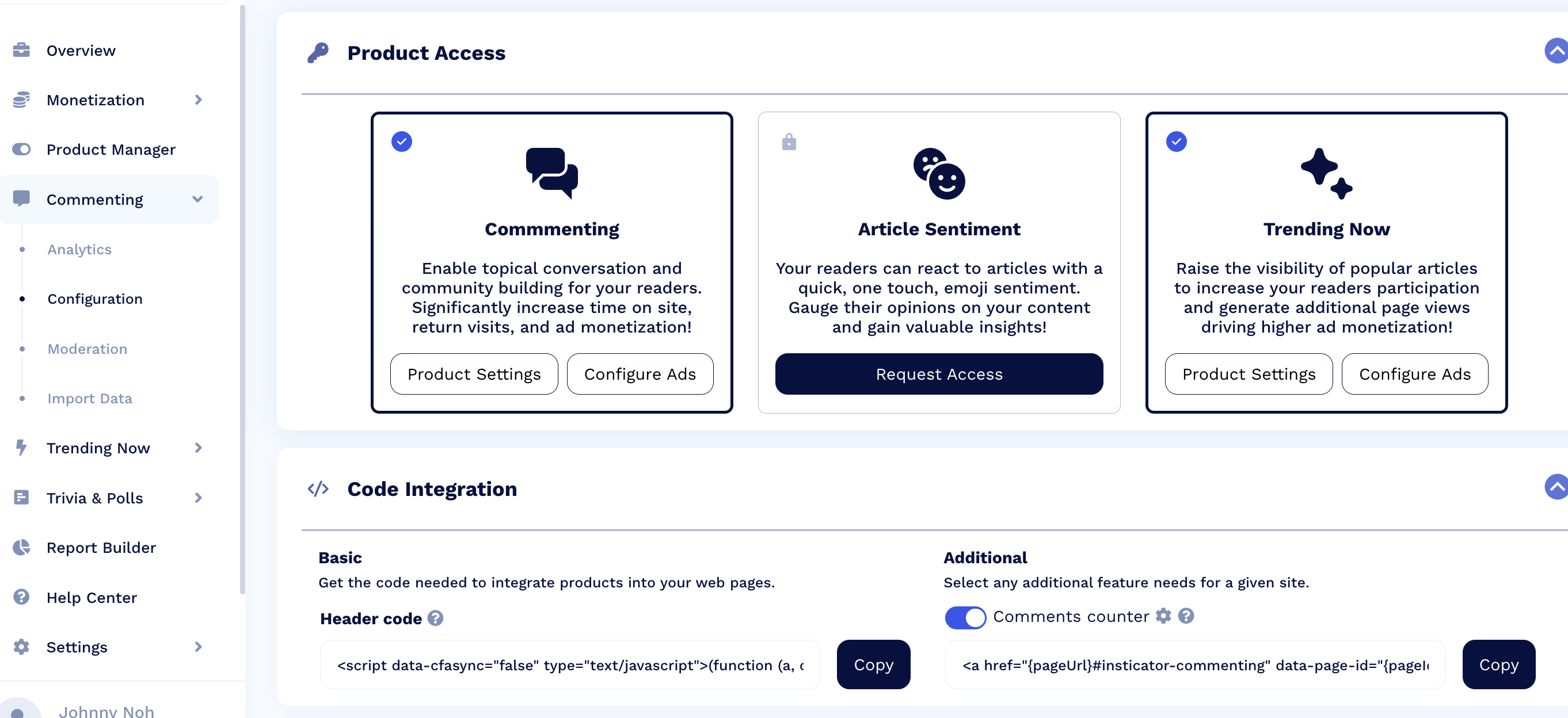
Enabling Comments Counter
Comments counter allows users to immediately see the number of comments on a particular article. Comments counter can be placed anywhere on the page with a fully customizable design.
To enable the Comments Counter feature for the Commenting unit:
- On the Commenting > Configuration > Code Integration - click the Enable/Disable toggle for Comments Counter.
- Copy the code provided below the toggle
- Place this code directly into the body element of your page where you want the comments counter to show. For example, on an article preview snapshot on your home page, or beneath the page title on the article itself. This will display the number of comments an article contains.
- In the Comments Counter Code section, add this suffix (anchor) to links where Comments Counter should appear.
For more information about External Page Id, see What is an External Page Id?.
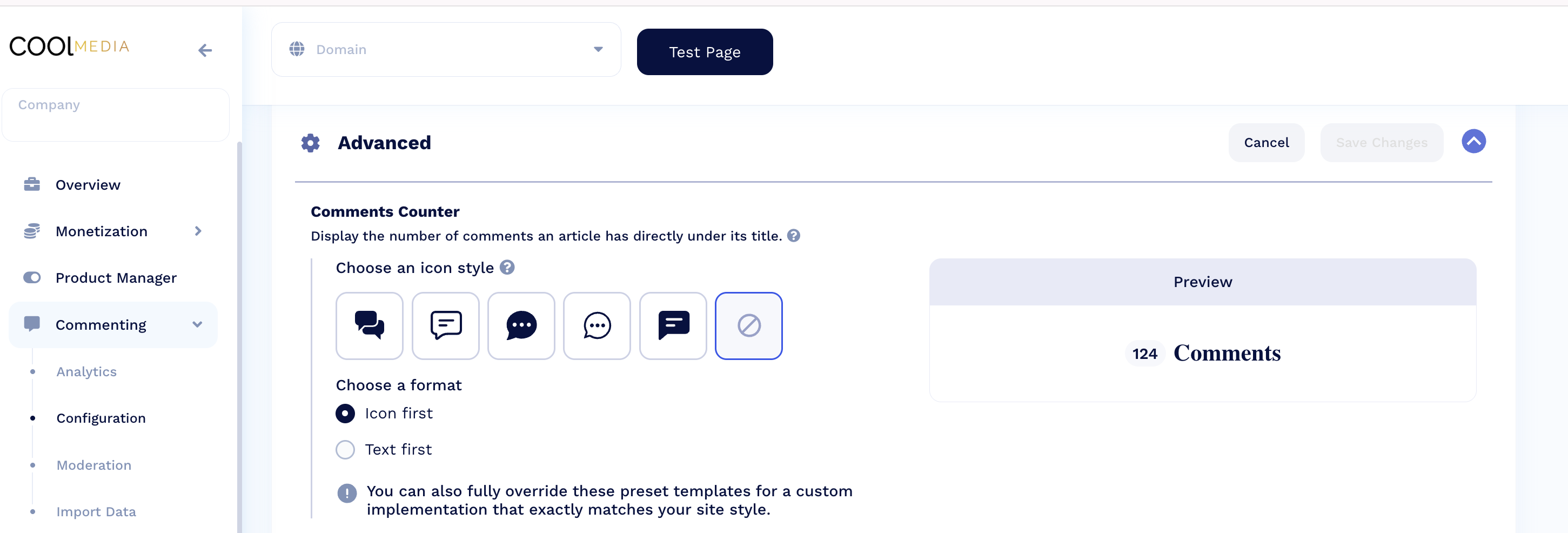
<a href="{pageUrl}#insticator-commenting" data-ext-page-id="{pageId}"></a>- In the Commenting > Configuration > Advanced Section > Comments Counter, you can choose the comments counter style and format.
- Click Save & Close.
Updated 7 months ago
Did this page help you?